
Help
Documentation
ROLA Replays · User guide
ROLA Replays guide
Turn your Ragnarok Online replays into a clear view of what happened: damage, timeline, party, skills, equipment, buffs, kills and loot.
Start here
- Sign in with Discord to associate the replay with your account and manage it later.
- Drop a
.rrffile into the upload area or press Choose file. - If the file contains multiple maps, choose the one to analyze and continue processing.
- Open the result using the link that appears.
Replays are usually in the Replay folder inside the game folder.
You can upload without signing in, but you will not have owner controls. If verification appears, complete it to continue. If you reach the upload limit, wait before trying again.
Explore the result
The summary brings the important parts of the gameplay together:
- Timeline: follow damage over time, zoom into a specific window and inspect events such as consumables and death moments.
- Players: compare your character with the confirmed party members.
- Monsters and kills: see which targets took damage and which monsters were defeated.
- Skills: review uses, damage, average damage and cast time, with skill icons.
- Equipment and consumables: review base equipment, costumes, shadow equipment, cards, refinements and used items.
- Buffs: inspect recorder effects within a range or at a specific instant.
- Loot: review the items detected during the replay.
Copy the replay link using the share icon next to the replay ID. You can also export the result as an image, PDF or CSV.
Filter the replay from the chart
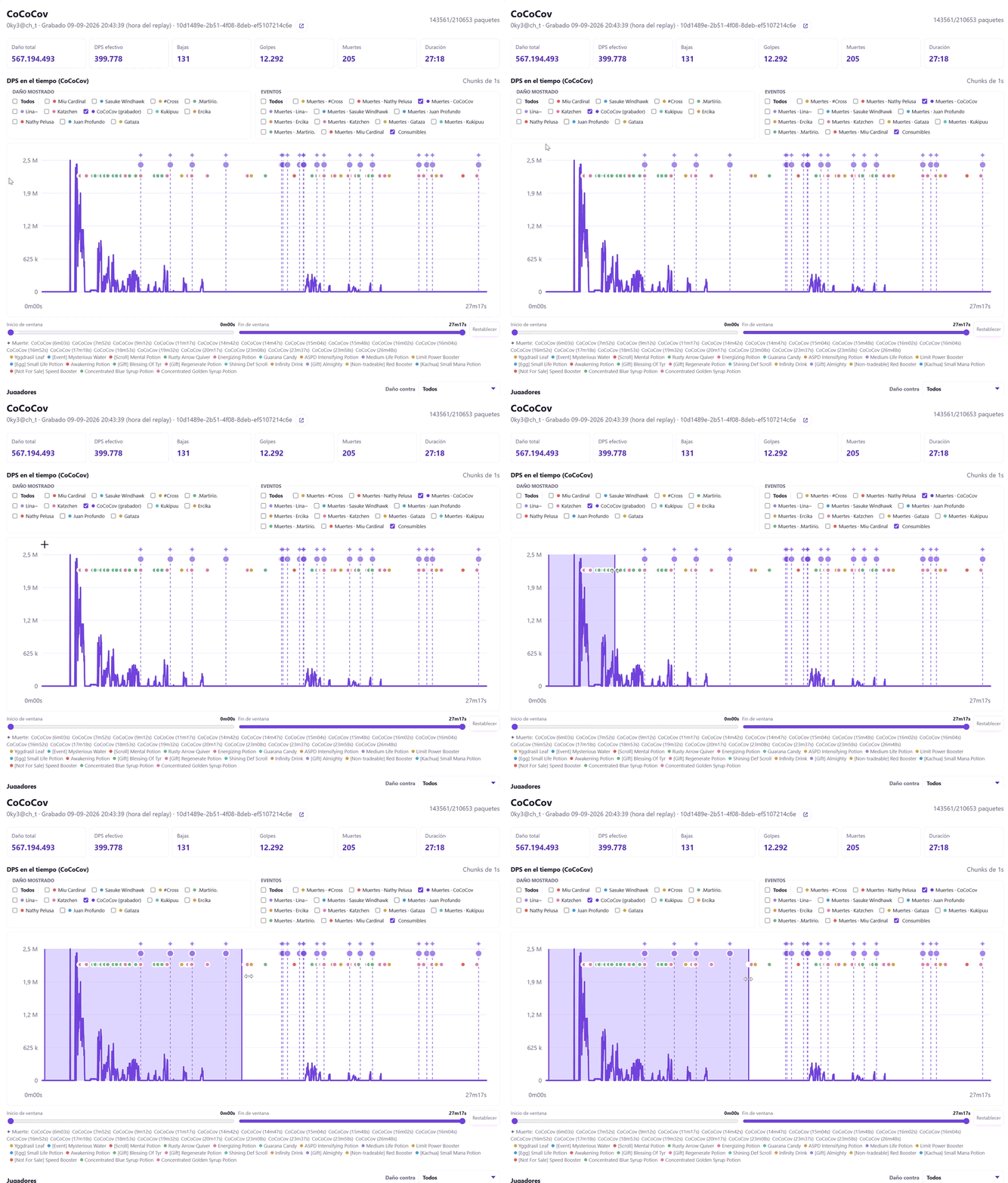
The DPS chart lets you analyze a specific part of the replay. Drag the mouse from the beginning to the end of the range you want to review. While dragging, you will see a preview of the selected area; the range is applied when you release the click. The two controls below stay synchronized with the selection and can also be adjusted directly. Reset returns to the full replay.
For a more comfortable analysis, click the fullscreen icon in the chart's upper-right corner. The expanded view keeps all filters and controls available and uses the full width to separate nearby events and make hovering over them easier. Event icons are slightly larger to make them easier to identify and hover. Exit by clicking the same icon again or pressing Escape.
In fullscreen, mob skills and consumables of different types are placed on separate rows, making events that happen almost at the same time easier to distinguish. The Events panel stays compact at the bottom; click it to expand the list over the chart and controls, then click it again to close it without changing the chart size. The time window controls remain available below the chart.
The selected range updates metrics and tables that support time-based analysis. Player, mob and event filters are independent of this range. Cumulative damage keeps its global total, and the instant buff mode uses its own time selector.
Events and damage by player
Under Damage shown, select the players whose damage you want to draw. All shows or hides every player's lines; selecting individual characters lets you isolate their lines and compare their contribution within the active range. In the same panel, filter player skill uses by character and skill; basic attacks are excluded.
Under Events, enable or disable deaths, mob skills and consumables. Skill selectors show only skills associated with the selected characters or mobs. You can include autocasts and group event mobs by name independently of the damage filter.
Events appear below the chart as clickable text: selecting one highlights its matching event on the chart. Selecting a consumable highlights all of its appearances, making it easy to follow its use during the window. Deaths can be selected individually.
The player and event filters only control what is drawn or highlighted on the chart. To change the metrics and tables across the rest of the page, apply a time range.
Chart settings
- Monster: search for and select the mob whose received damage you want to analyze. Without a filter, damage to all targets is shown.
- Group by name: combine mobs with the same name in the selector to analyze their encounters together.
- Group players: sum the selected players' damage into one series. This works for both DPS and cumulative damage.
- DPS / Cumulative: switch between damage per second and the running damage total from the start of the replay.
In cumulative mode, selecting a range zooms in without restarting the total. The vertical axis fits the cumulative values visible in that window.
These controls affect the chart; they do not filter the rest of the page's tables by monster or player.
Recorder buffs
The table shows buffs for the character who recorded the replay, with two modes:
- Range: inspect buffs recorded within the selected interval, their applications, duration and status at the end of the range.
- Instant: choose a time using minutes and seconds or the slider. Shows buffs considered active at that point in the full replay duration, independently of the chart zoom.
Enable Visible buffs to show only statuses identified as buffs with an icon in the client. The heading count reflects the rows shown after filtering.
If an older replay lacks enough information to reconstruct buffs at an instant, a message explains that limitation. It does not mean the character had no buffs.
Constellation Tower phases
Click a phase button below the time controls to select the interval from its start to the next recorded phase. The last phase extends to the end of the replay. The range applies to the chart and tables; cumulative damage keeps its global total. Phase buttons remain available, and Reset returns to the full replay.
For Constellation replays, the chart can mark the start of Betelgeuse phases 1, 2 and 3 using recorded announcements. Markers help compare damage and events before and after each transition.
Only detected phases are shown: the boss may jump directly from phase 1 to phase 3 or die without another recorded transition. A missing marker does not by itself prove whether a phase occurred.
Data coverage
The analysis reflects what the recorder could observe. The player list includes the recorder and confirmed party members; nearby characters are not added as party members.
Party skill events try to identify the caster using available evidence and, when needed, skills from their class and previous classes. If evidence is insufficient, several events may be retained: they do not necessarily represent separate casts.
Saved replays remain accessible even when the original file is no longer available. Some features may report unavailable data if an older analysis lacks the necessary information.
Organize your replays
Each replay can be public or private:
- Public: appears in the global list and can be opened by other users.
- Private: only you can view it from your profile.
From Profile, you can change your display name, choose the default visibility for future gameplays and manage replays you have already uploaded.
The global list lets you search replays, filter by uploader and date, and choose visible columns, including the instance. Difficulty and outcome appear when available; estimates are labeled accordingly. Each replay can have an optional public description.
Add context
In the replay view, the uploader can edit:
- Public description: appears in the list and next to the player's name. It is limited to 44 characters.
- Private comment: visible only to the owner of the replay.
Taiwan replays
Before choosing or dropping the file, select Taiwan (Big5) under Game client language. This displays names and chat correctly in Traditional Chinese.
If you already uploaded the replay, upload the same file again with this option using the same account. The analysis will be updated while keeping its visibility, description and notes.
Interface language
Use the language selector at the top to choose Español, English or Português. Spanish is the default, and your selection is remembered in this browser.
A link with an explicit language opens in that language even if your browser remembers another. Character names, chat and user-written content are not translated. Game references use the names available. It is independent of Game client language, which controls how the replay is read.
When a Sacrifice use is recorded, enable “Damage received through Sacrifice” under Events to see transferred hits, their amounts and the protected party member. These events do not add to damage dealt or DPS.